
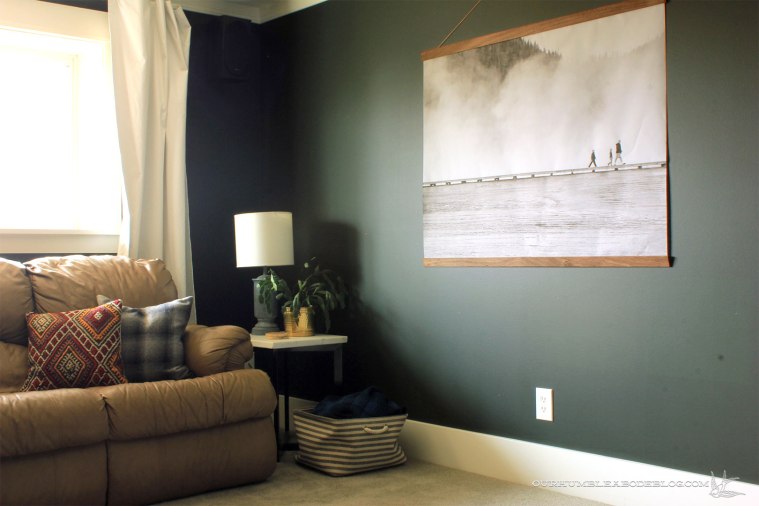
One of my goals this year is to get more pictures off our computer, phones, and memory cards and onto walls, frames, or into books. I’ve already ordered three photo books through Shutterfly, but we also needed large art for the basement theater room.
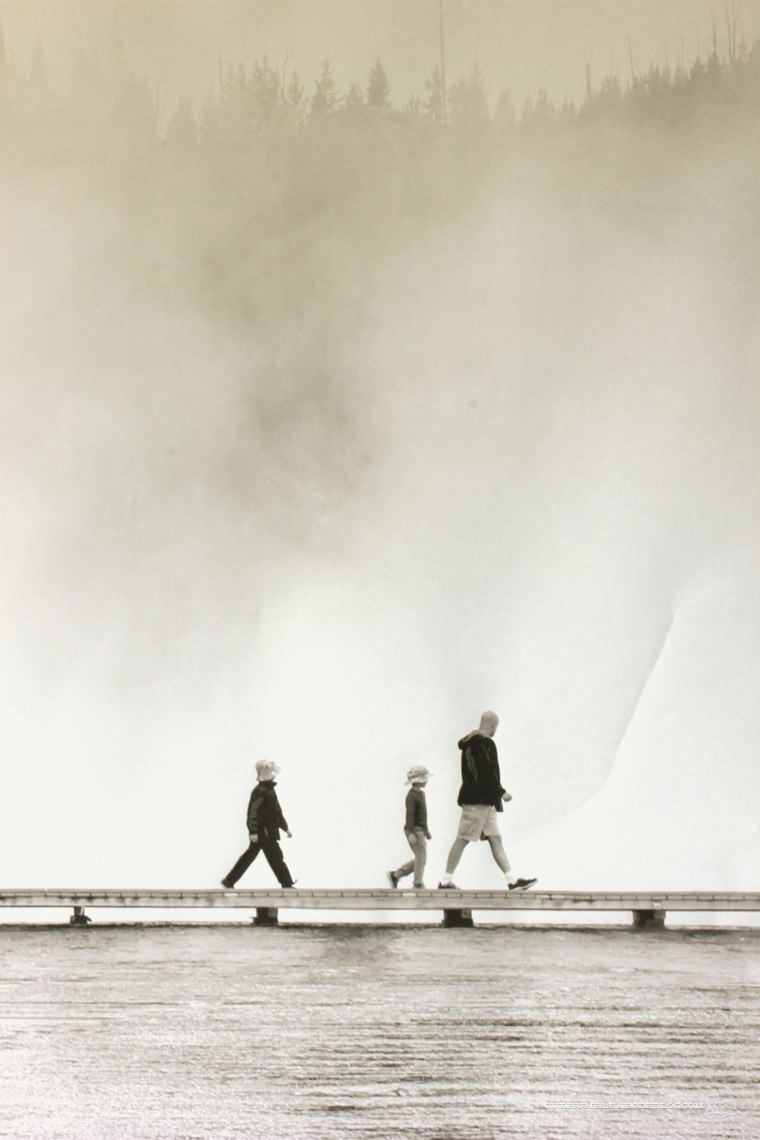
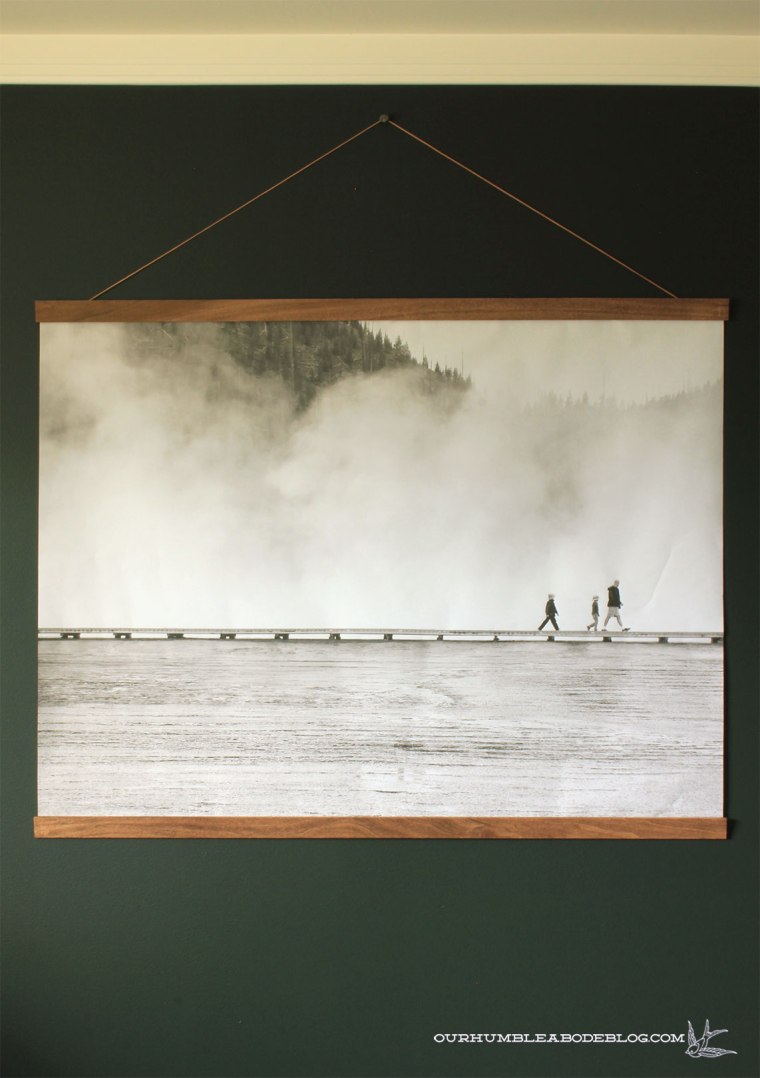
While in Yellowstone, I took around 1,000 photos and loved the simplicity of this shot of Ben and the boys on the boardwalk at the Grand Prismatic Spring.

It was a cool day, so we saw mostly steam. While not the best for viewing the amazing thermal features, it did create a dramatic, but simple background. However, with the crowds of people, I couldn’t get a shot with just my three favorite men. Luckily, Photoshop and I are pretty friendly and a few simple edits took care of my problem.
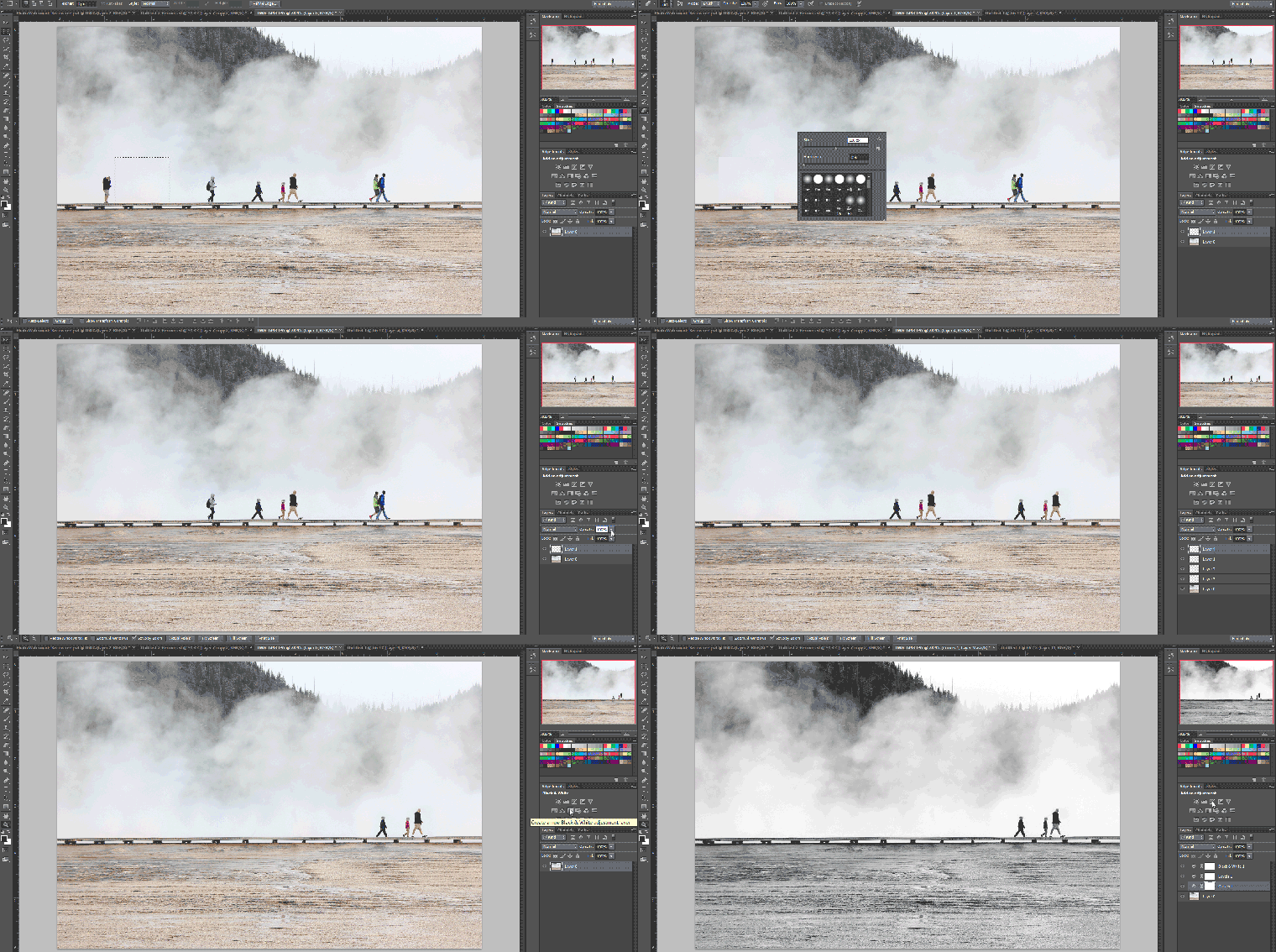
Above is a gif of my editing process. If you’re planning to turn a photo into wall art, here are a few tips for the best results.
First, edit out any distractions. Solid backgrounds work best, whether literally solid or a mass of trees, water, or anything else that doesn’t have a noticeable repeat. To edit out the distractions, in this case, other people, select an area as close to the object as possible, then copy and paste. Move the layer over, covering the object and select the eraser tool. Lower the hardness to 0 and raise the brush size to give a soft, fuzzy edge. Erase all around, then repeat with any other problem areas. In my case, after editing, I preferred a composition with the three guys over to the right, rather than centered on the frame. I copy and pasted them into position, erasing around the new layer to soften the overlay. Then covered their original placement.
Secondly, if your plan includes turning the photo from color to black and white, follow these simple steps. Start by turning to black and white, and click the auto adjust button. From there, you can adjust the color values to your liking. It is also helpful to auto adjust the Levels and Curves to enhance the depth. If too harsh, lower the opacity until it looks best.
Finally, when printing, save the file as a .pdf and print at your favorite location. To adequately fill the wall space, I had my file printed as a three by four-foot black and white engineer print at FedEx Office for nine dollars. Usually the biggest expense isn’t printing, but framing such a large piece.

To save loads of money, head to your nearest lumber department. Home Depot carries 1/4 inch thick by 2 inch wide by 48 inch long poplar strips for only $2.61 each. I bought two, and gave each strip a coat of Minwax Special Walnut stain. Allow to dry, then break out the staple gun loaded with 1/4 inch staples. Lay the paper face down and tuck the wood under the top slightly. Use masking tape to keep the paper from shifting, and staple occasionally to secure the paper to the board.

I added full strip of tape over the staples for added security. To hang, I used a 40% off coupon to pick up a roll of leather cord from Hobby Lobby. Tie a knot in each end and staple just above to prevent the cord from falling out.
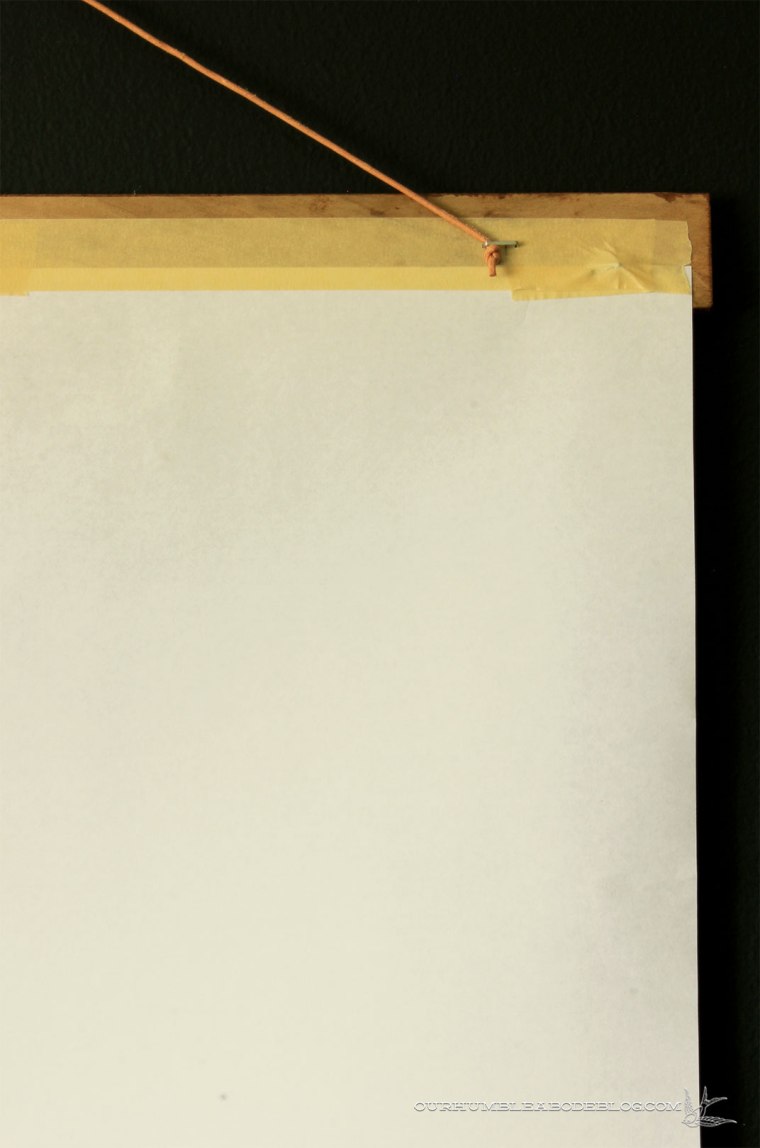
Attach the other poplar board to the bottom and hang on a nail. Nearly instant, large wall art that didn’t cost an arm or a leg.
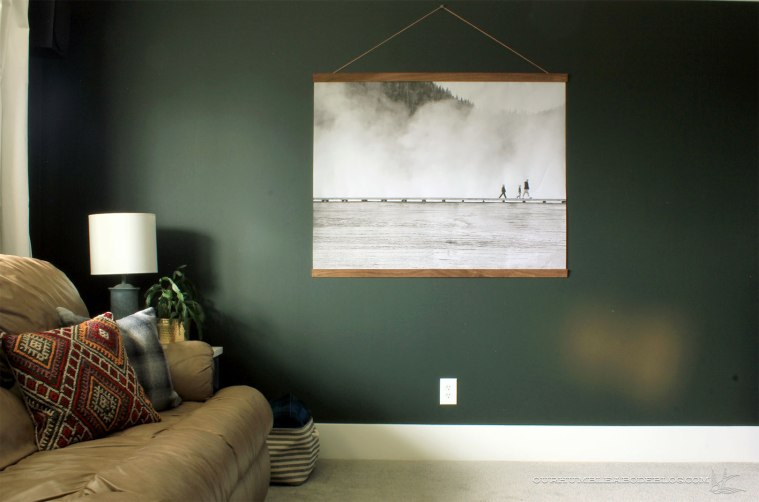
In fact, assuming you already have a tiny bit of paint or stain, staples, and tape, grand total is under twenty bucks!
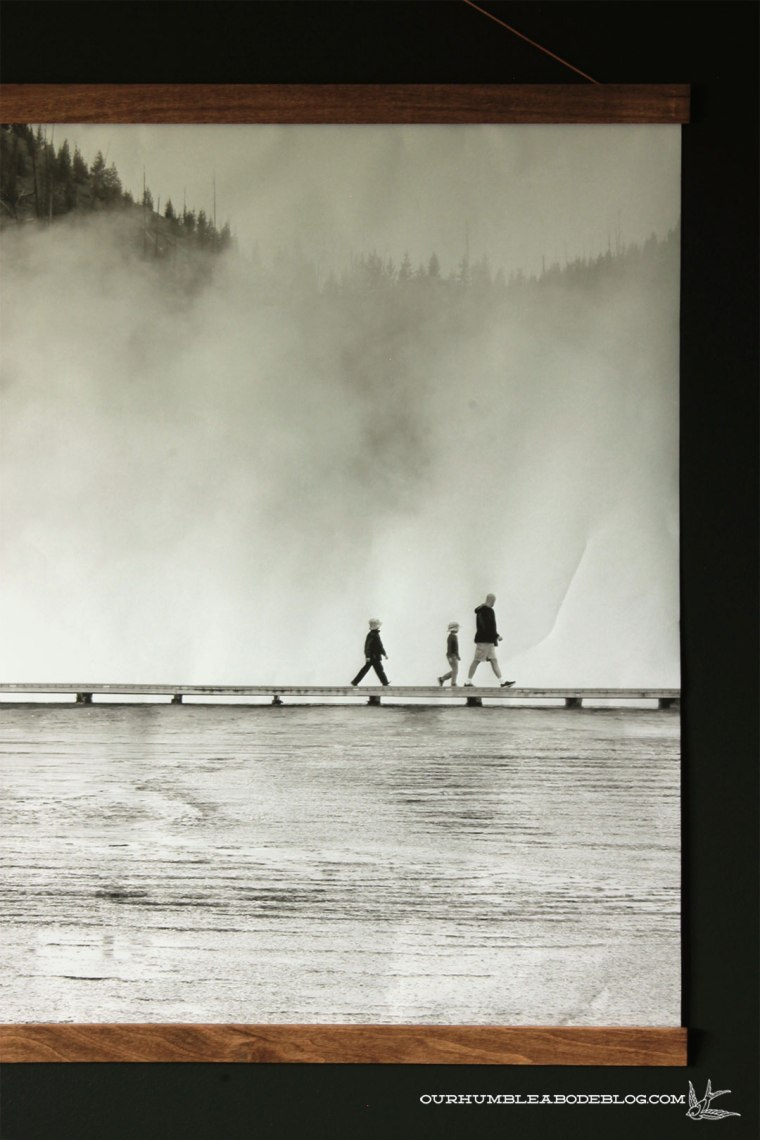
That’s cheap enough to justify creating a rotating gallery, swapping whenever you have a new favorite photo.
Now, dig through those gazillion photos on your computer and pick at least one to hang on your wall.
P.S. Shutterfly is offering 50% off plus free shipping on orders over $39 through September 5th, so order now!




















 ourhumbleabodeblog.com